We use cookies to give you the best possible experience on our website. By continuing to browse this site, you give consent for cookies to be used. For more details, please read our Online Terms & Conditions, Privacy Policy, Cookies Policy and Personal Information Collection Statement.
We recommend using a computer web browser or Hang Seng Mobile App to log on for enhanced security. Please visit "Security Information Centre" for more security tips.



Want to pay effortlessly? Simply add your Hang Seng Credit Cards to Apple Wallet in your devices, and make contactless payments in shops or online.
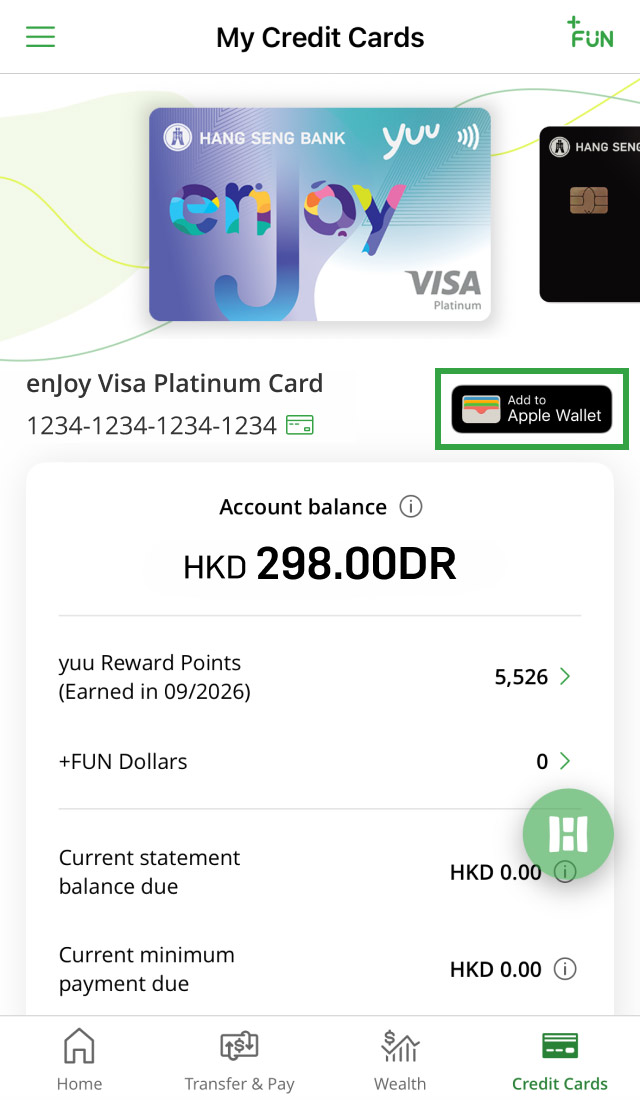
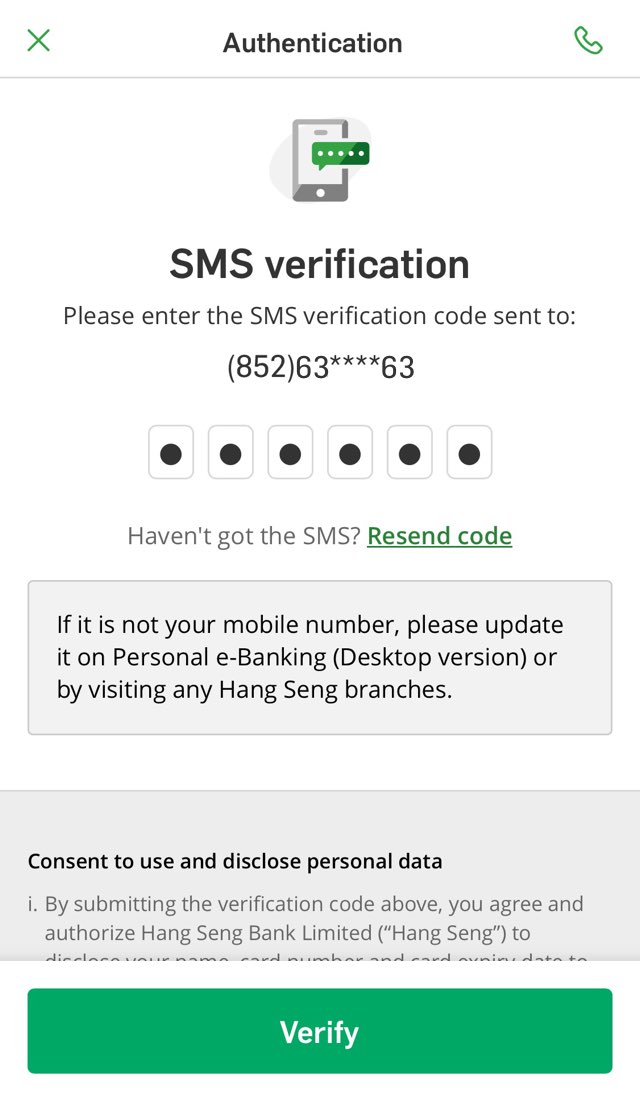
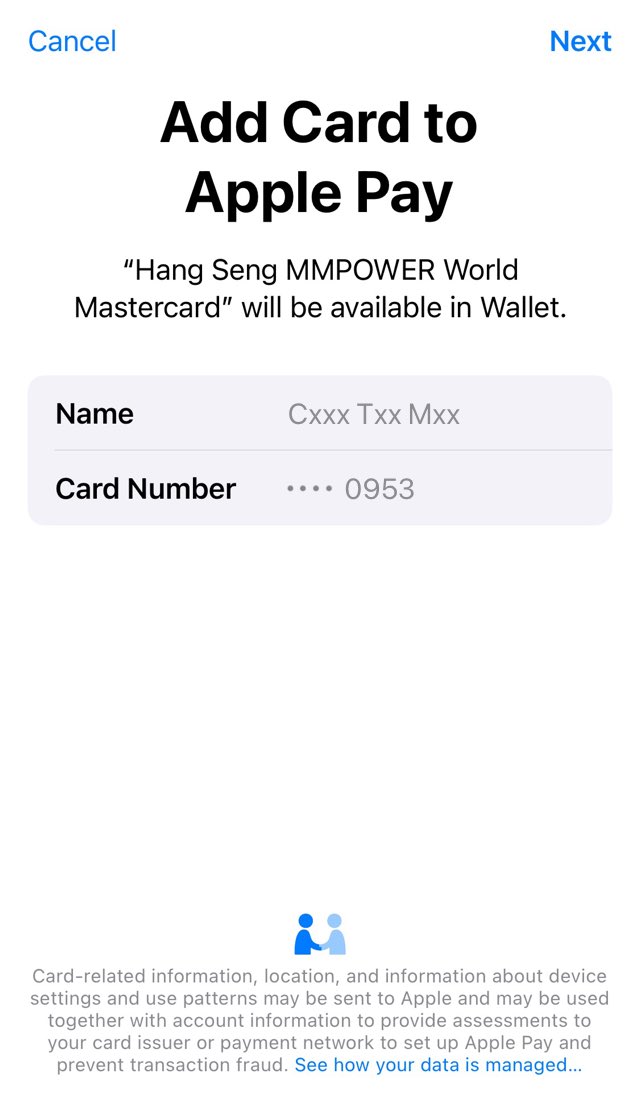
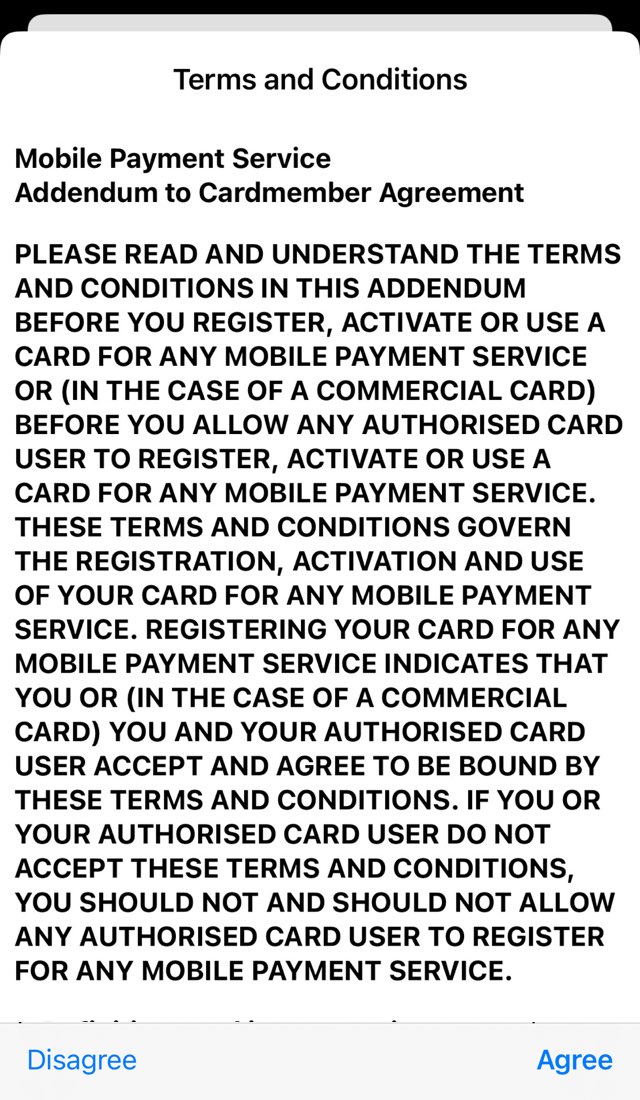
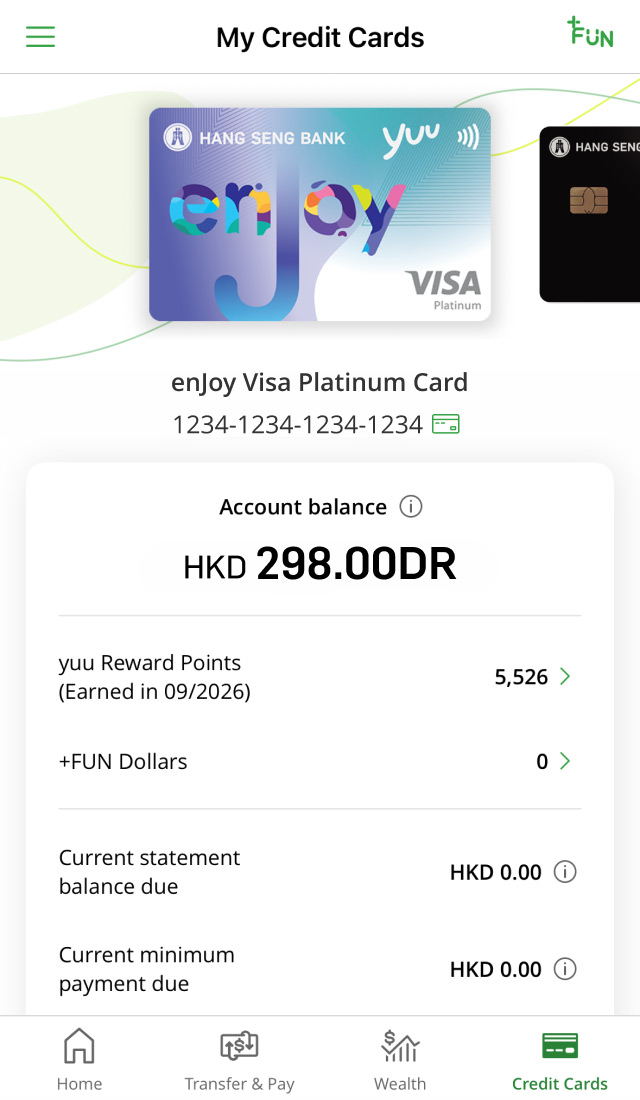


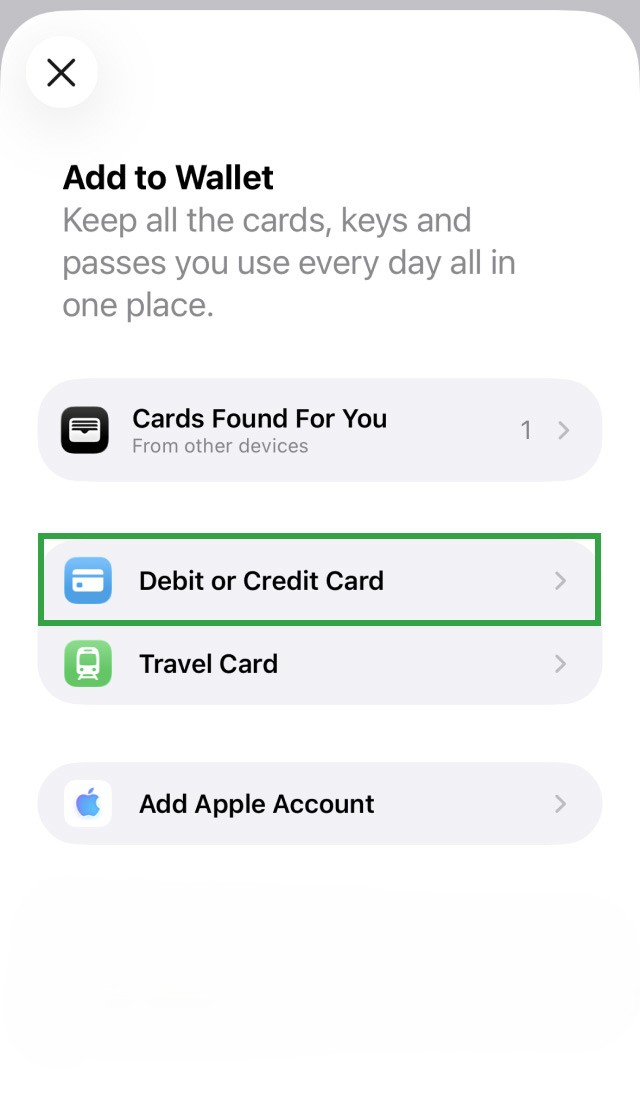
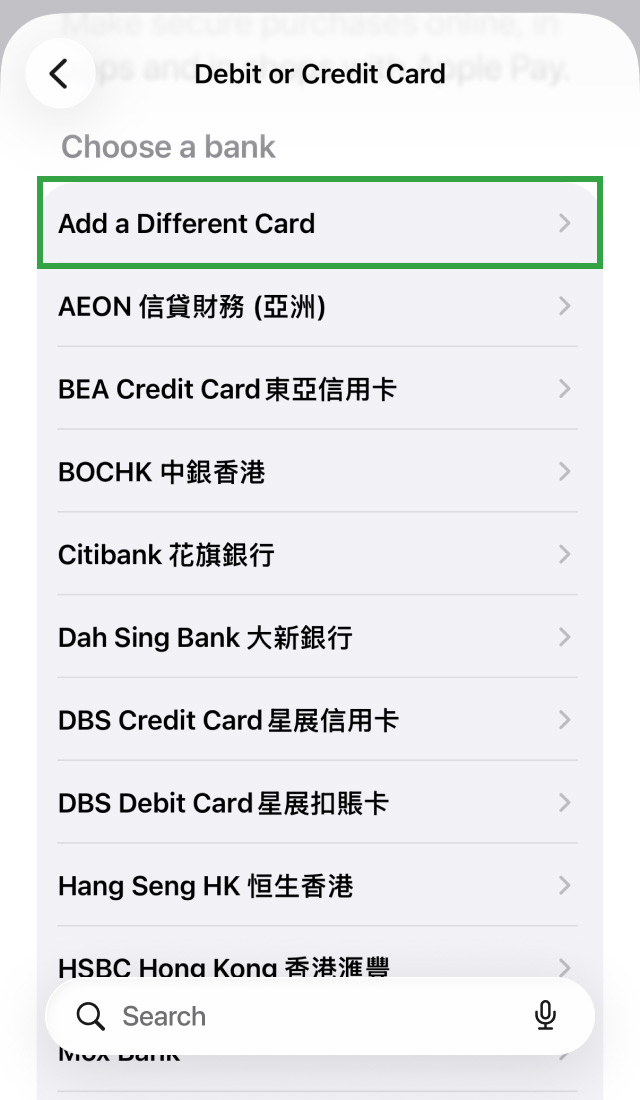
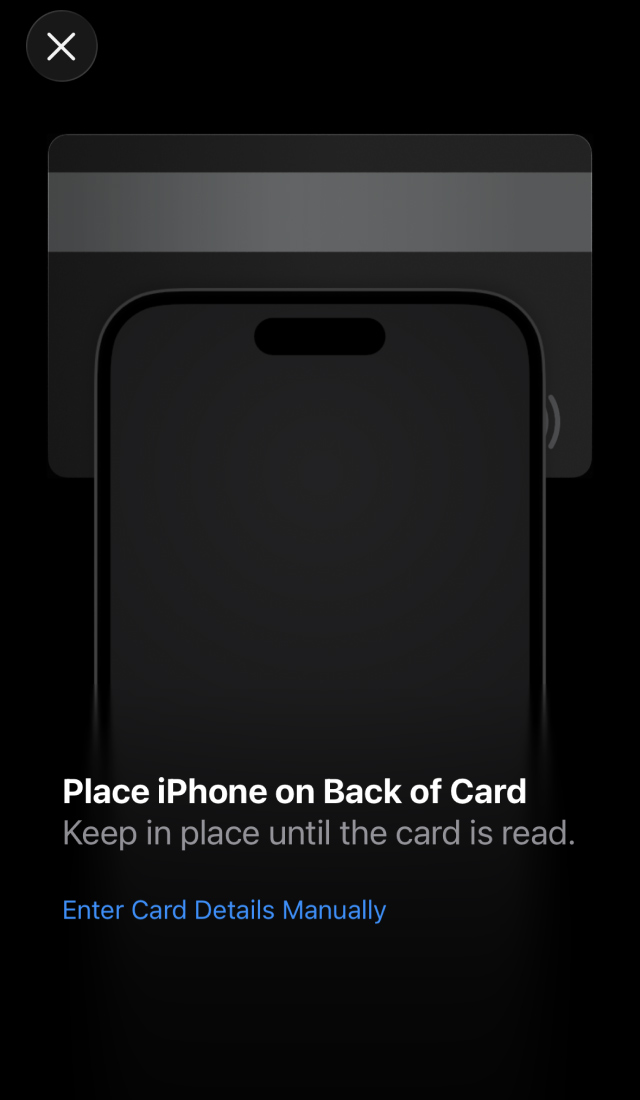
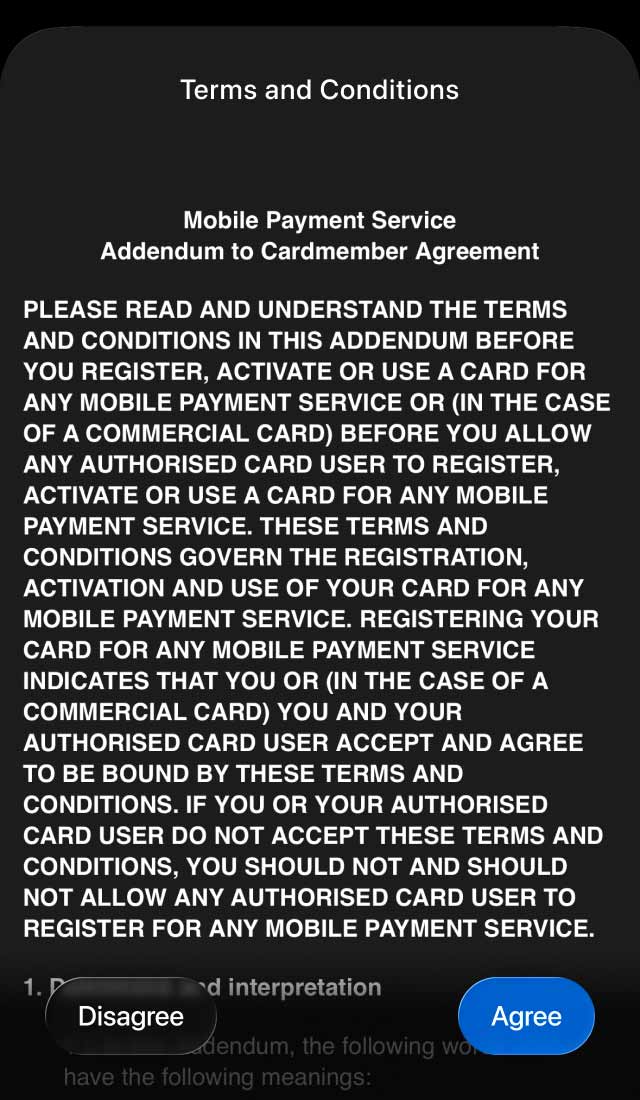
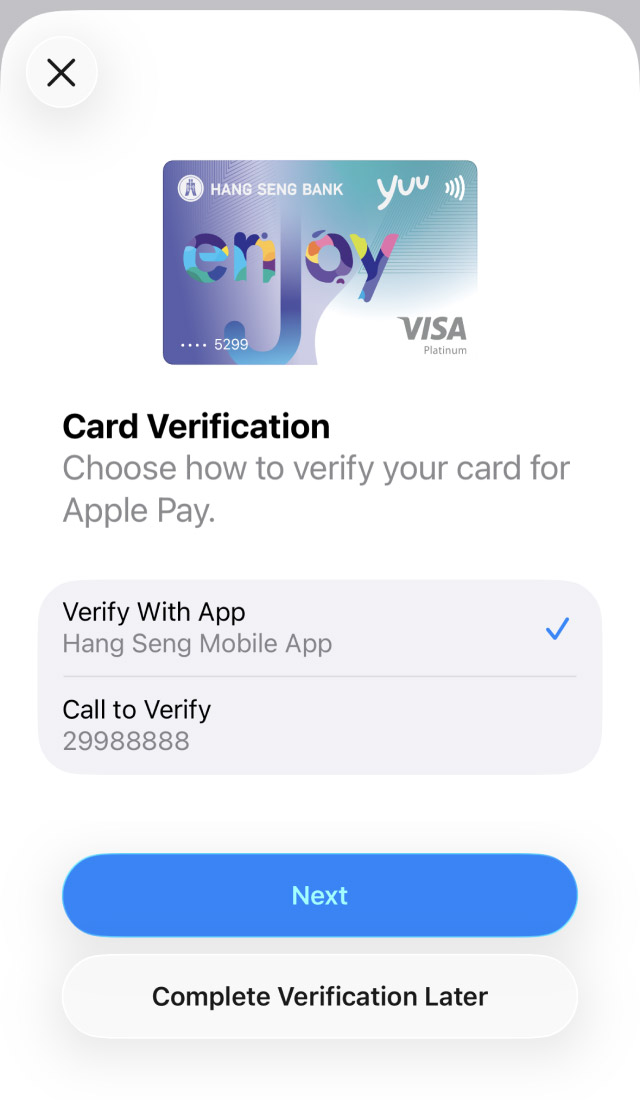
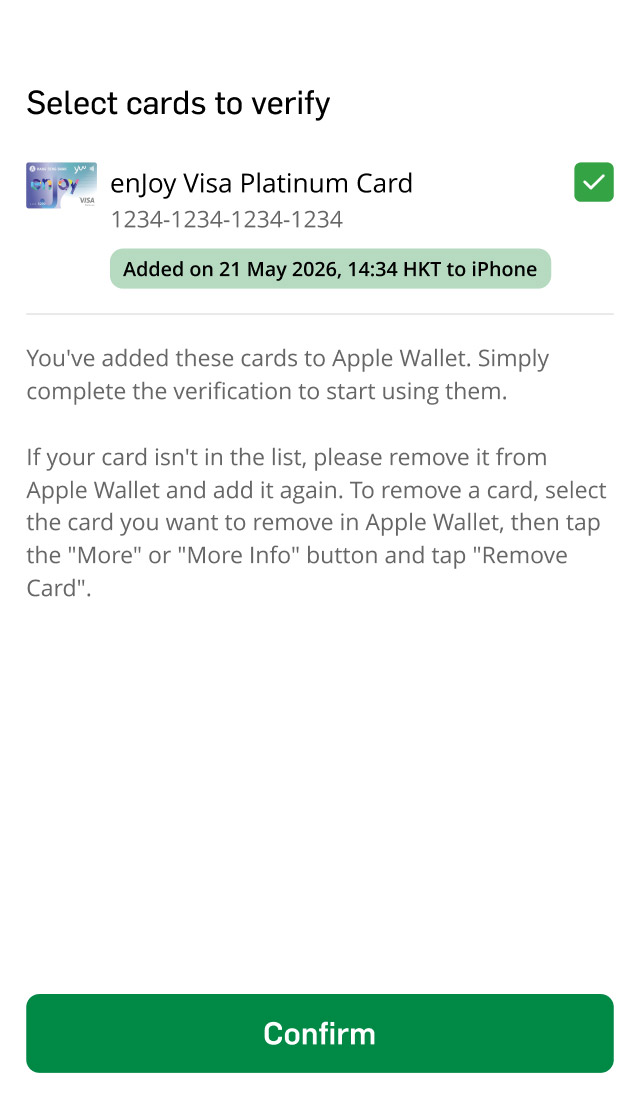
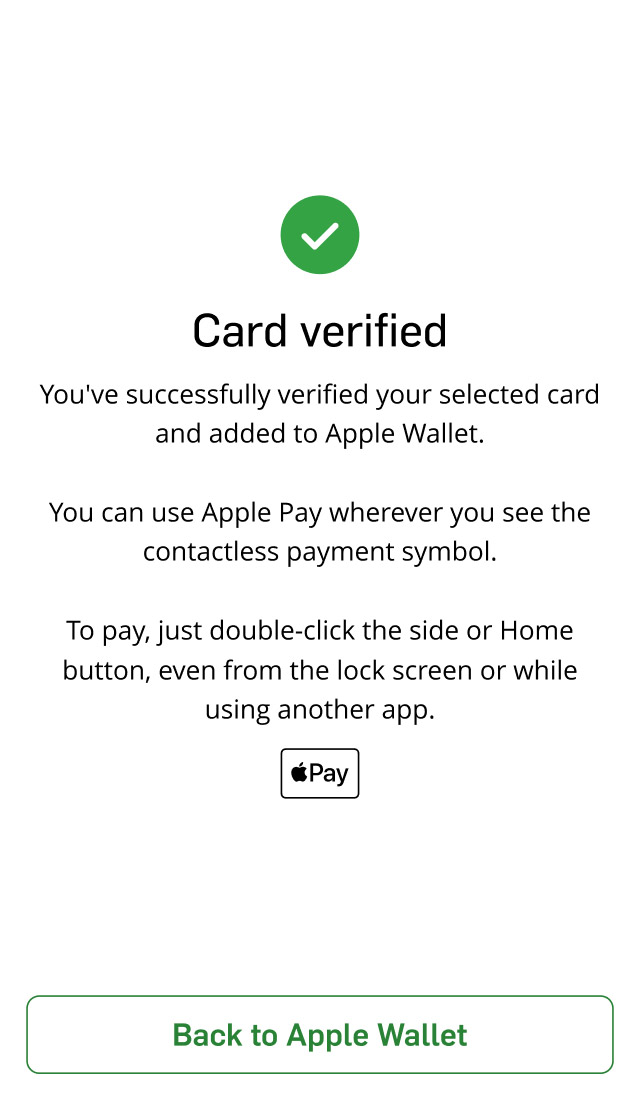
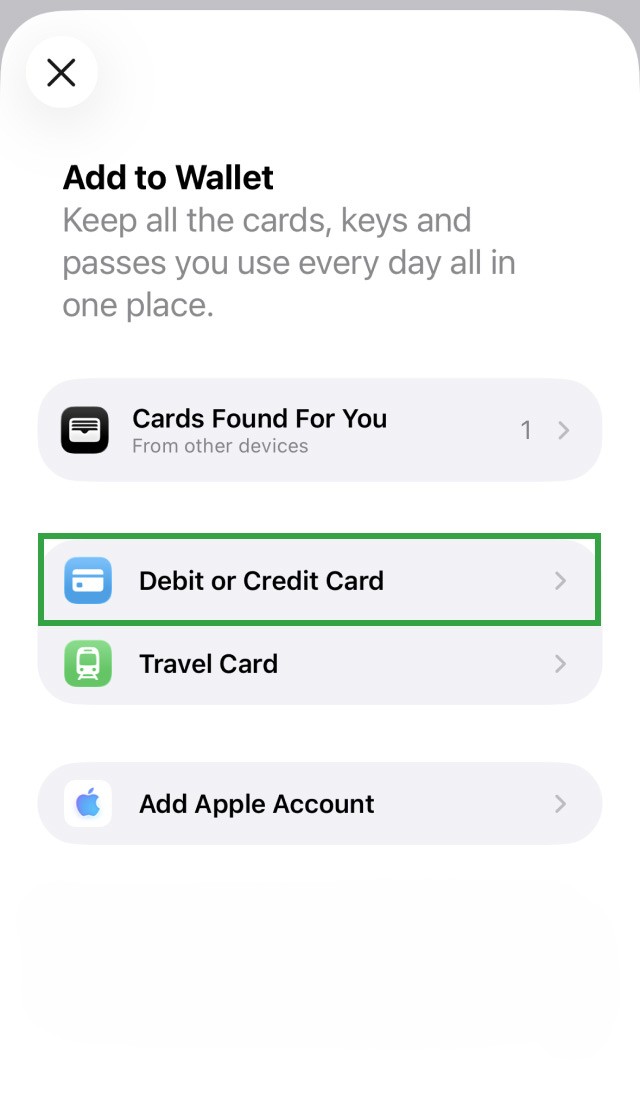
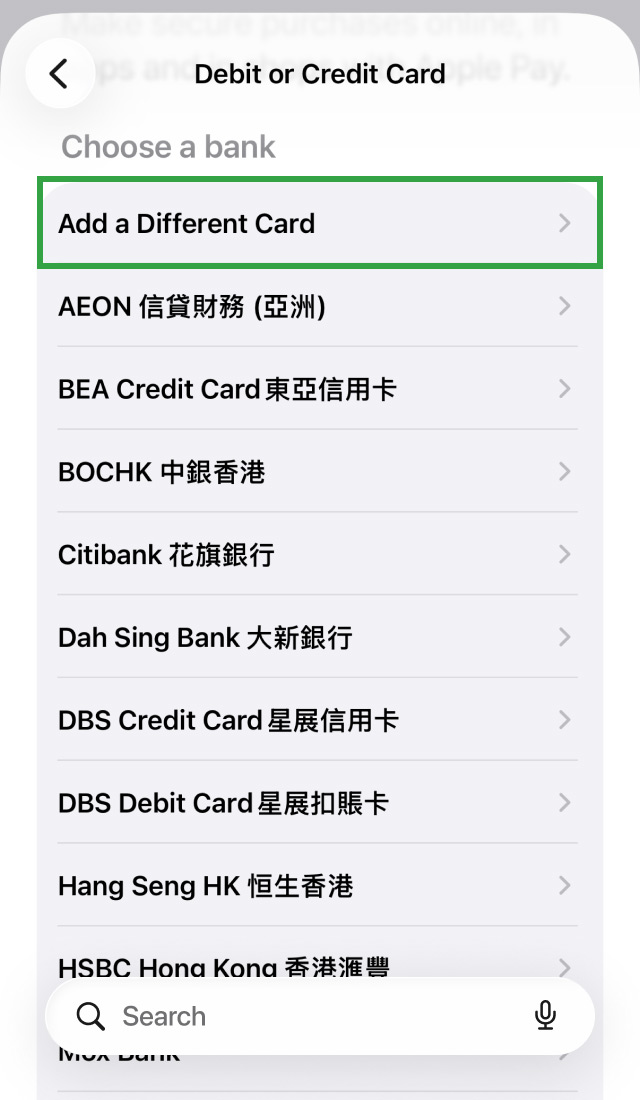
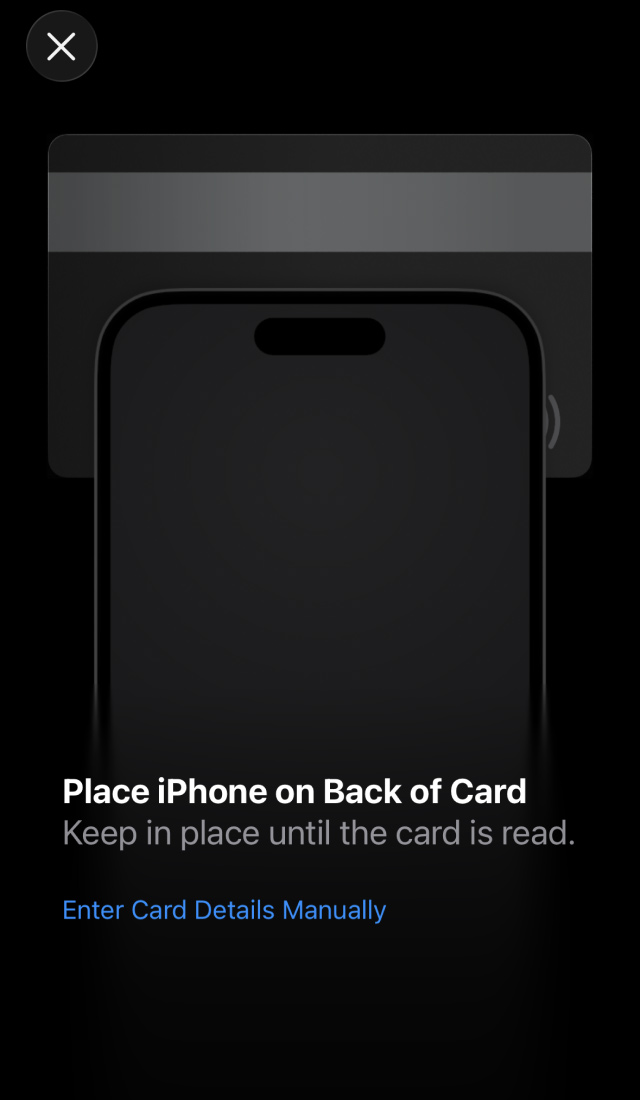
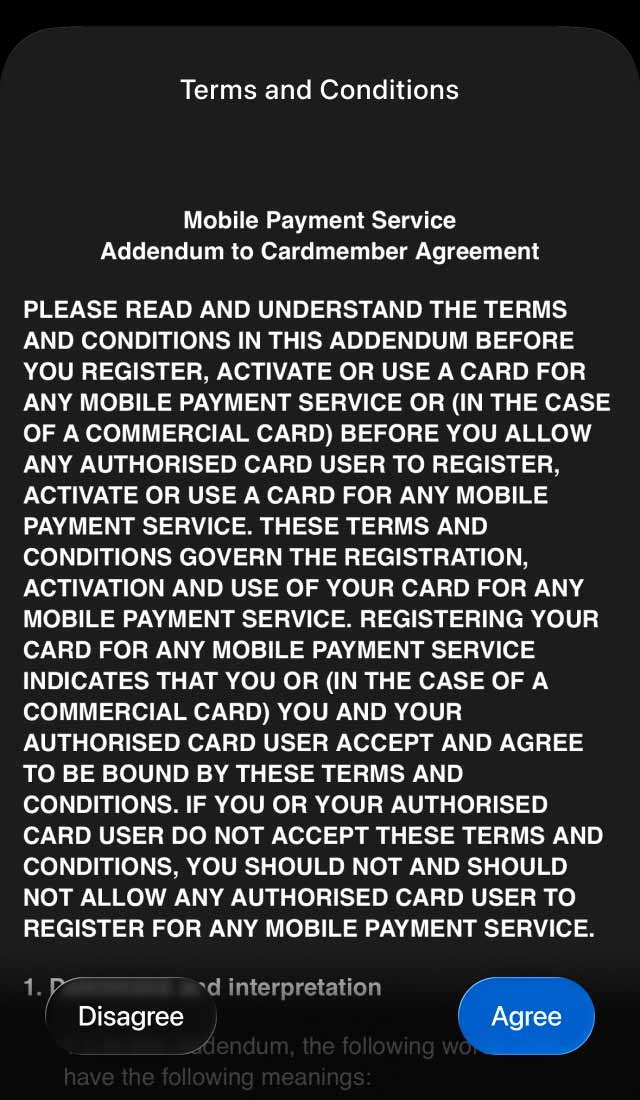
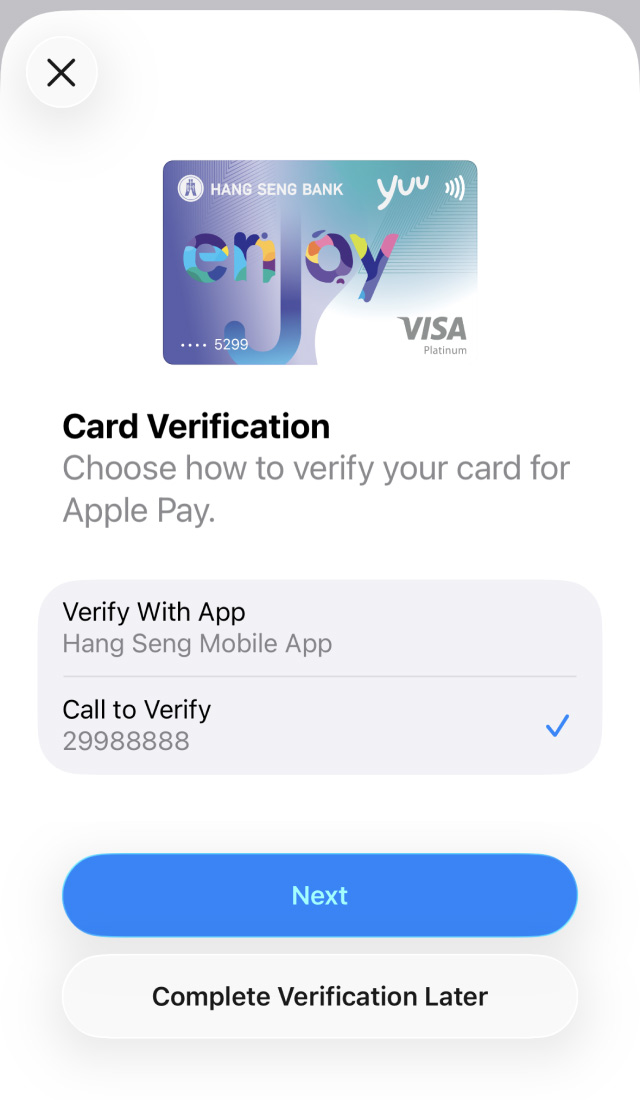
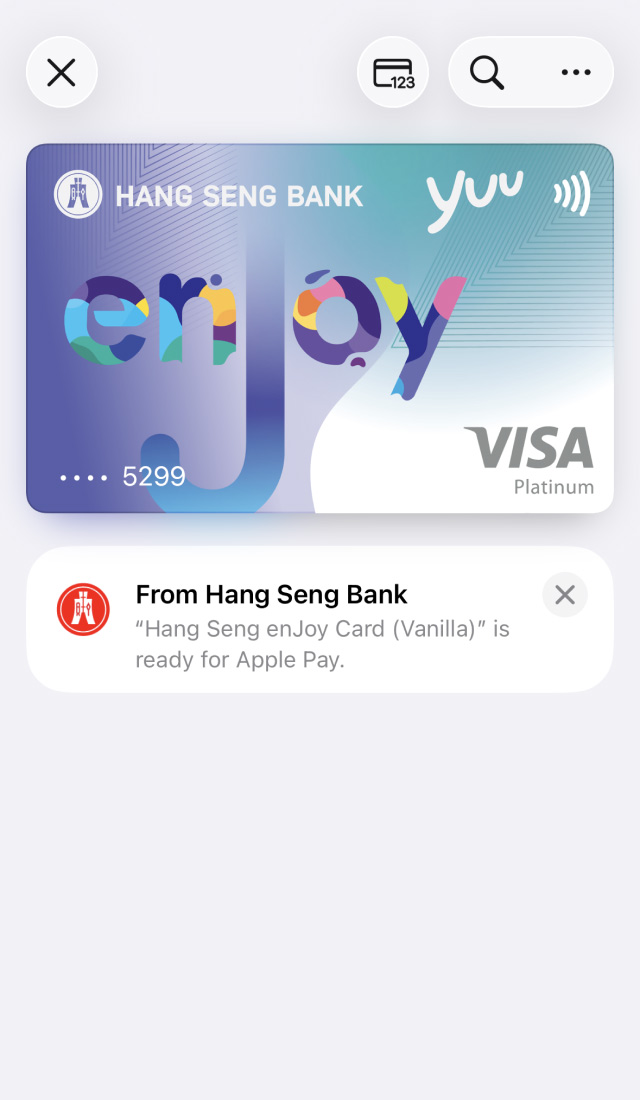
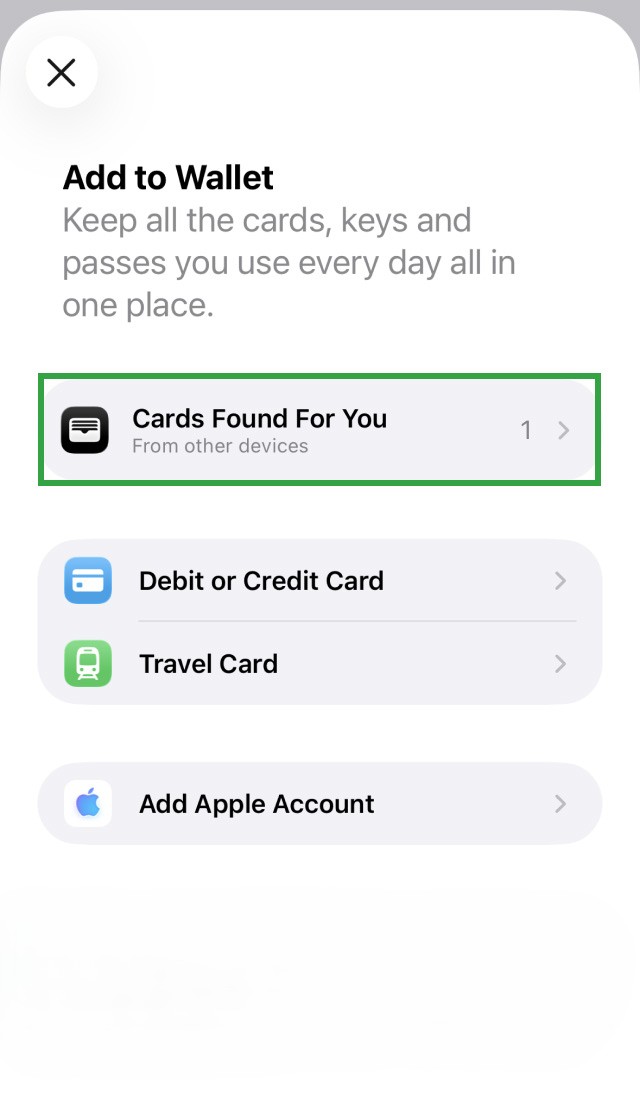
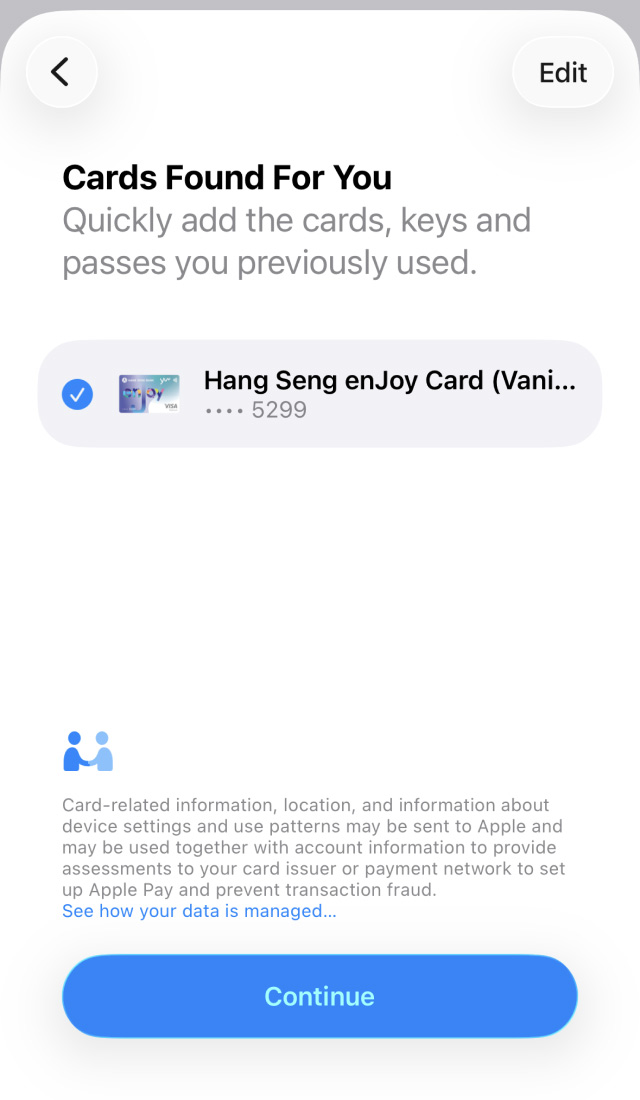
Please insert the SIM card into your new phone, then add your card via the Apple Wallet app or Hang Seng Mobile App.
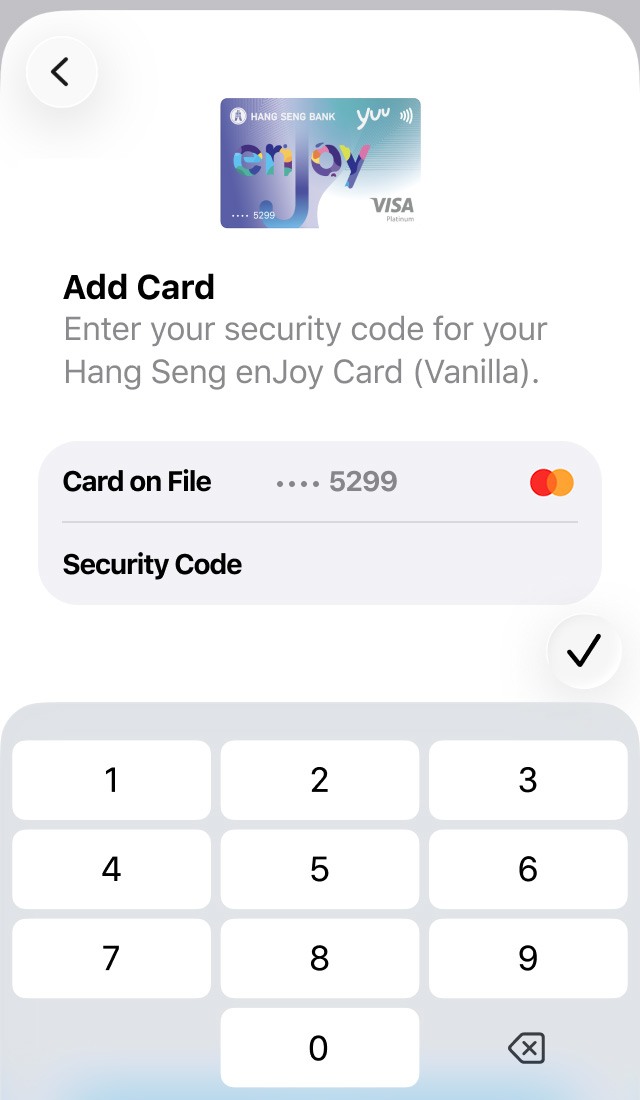
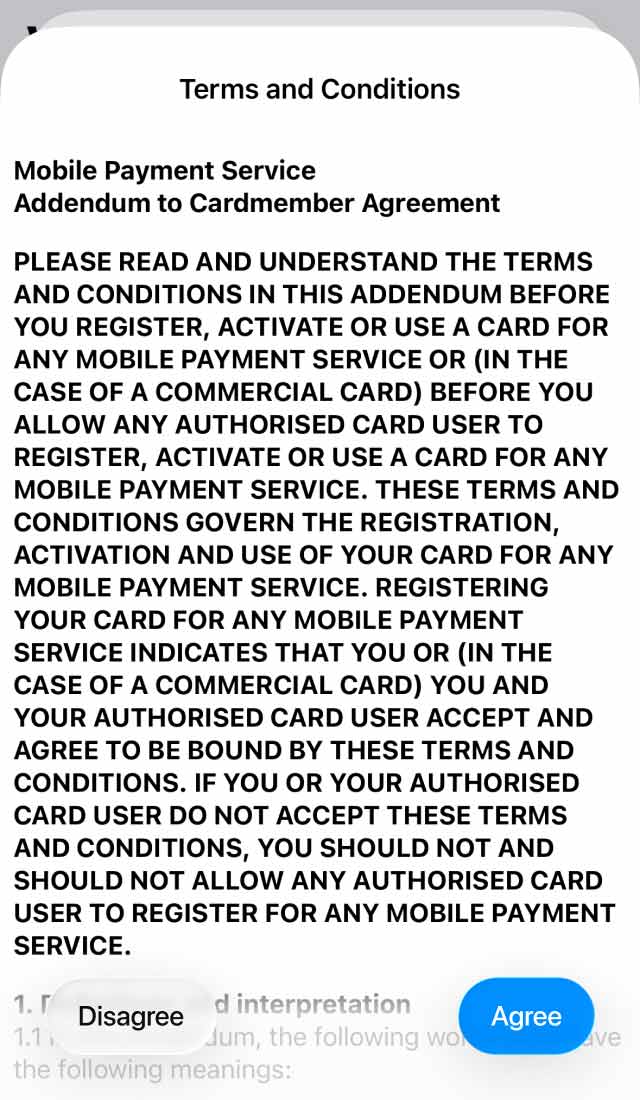
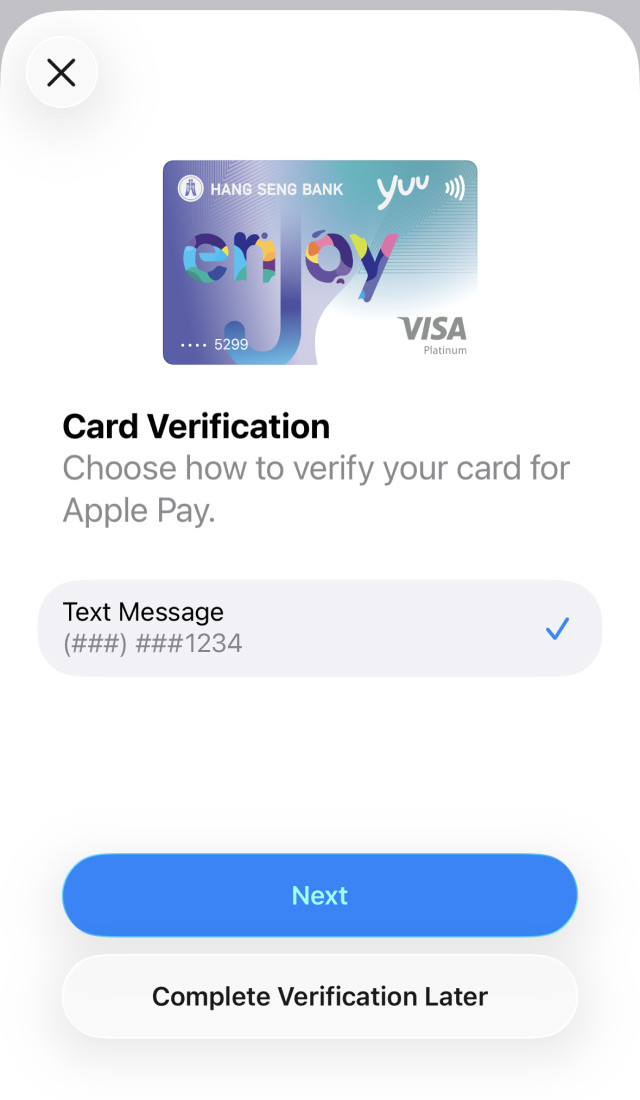
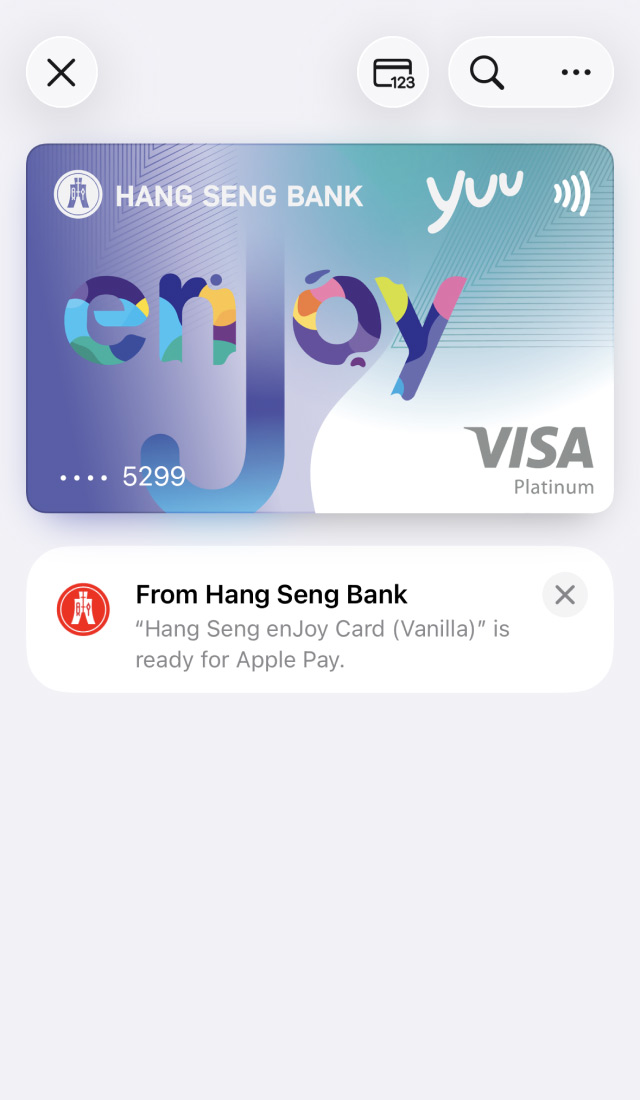
To pay in stores with your iPhone, just double-click the side button and authenticate with Face ID, Touch ID or your passcode. Then hold the top of your iPhone near any readers with contactless or Apple Pay symbol until "Done" and a checkmark appear on the display, meaning your payment information was sent.
If you're using an Apple Watch, also double-click the side button and hold the display of your Apple Watch up to the contactless reader. A gentle tap and beep confirms that your payment information was sent.
To pay in apps or on the web on your iPhone and iPad, select Apple Pay as the payment method and authenticate with Face ID, Touch ID or your passcode.
You can top up your Octopus card with Hang Seng Credit Cards whenever, wherever via Apple Wallet, saving time in queues and making your rides and spendings simpler and more convenient[1].
You can instantly add the following credit cards to Apple Wallet after activating your card via Hang Seng Mobile App:
Hang Seng Credit Card and Affinity Card (excluding Hang Seng USD Visa Gold Card, e-shopping MasterCard, Private Label Card and Spending Card).
Please call our customer service hotline for assistance in adding the following cards to Apple Wallet:
CUP Credit Card, UnionPay Diamond Commercial Card, Renminbi Card, Visa Commercial Card, Visa Business Card and Commercial MasterCard.
You can visit https://www.apple.com/apple-pay/ to learn more about the devices compatible with Apple Pay.
Apple Pay transactions are secure because every payment from your compatible device requires Face ID, Touch ID or a passcode for authentication, and your card information is never stored on your device or shared to merchants when you pay.
The first card you add to Apple Pay will automatically be your default card. To choose a different card, you can:
You can use Apple Pay when you make a purchase in app or online on your compatible Apple devices, or wherever you see the contactless payment symbols. You can visit https://www.apple.com/apple-pay/ to learn about the symbols.
If you need to return a purchase made with Apple Pay, you'll have to bring along your physical card and request the merchant to issue the refund back on your card. We suggest you bring along your receipt and the device used for the purchase when making a return.
Yes, Apple Wallet allows you to add multiple cards on a device. Please note that you must add your cards each by each separately.
After changing devices, to ensure your account security, your Hang Seng credit card details won't automatically transfer to the new device's Apple Wallet. You'll need to re-add your Hang Seng credit cards to Apple Pay.
If you encounter issues adding a credit card to Apple Wallet via the Hang Seng Mobile App after activating / switching your Mobile Security Key to a new device, please check the FAQ "Mobile Security Key - General Questions".
If you receive a re-issued / replacement card, you'll need to add your new card to Apple Pay.
To remove a card, select the card you want to remove in Apple Wallet, then tap the "More" or "More Info"
 button and tap "Remove Card".
To borrow or not to borrow? Borrow only if you can repay!