We use cookies to give you the best possible experience on our website. By continuing to browse this site, you give consent for cookies to be used. For more details, please read our Online Terms & Conditions, Privacy Policy, Cookies Policy and Personal Information Collection Statement.
We recommend using a computer web browser or Hang Seng Mobile App to log on for enhanced security. Please visit "Security Information Centre" for more security tips.



To ensure online protection and provide you safe and secure e-Banking services, we have implemented the following online security measures.
In the meantime, you can also help safeguard your account information and data privacy. Please read the FAQs on Privacy and Security and visit Security Information Centre for more information.
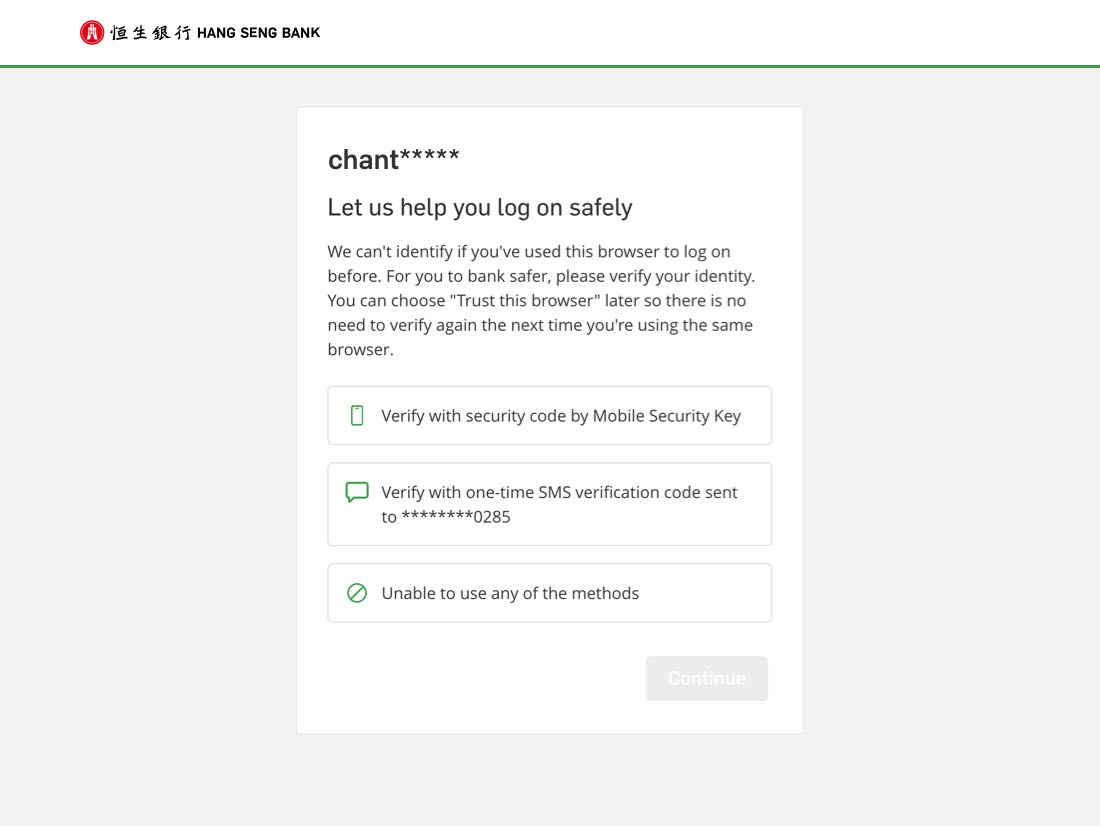
When you log on to Personal e-Banking with a new browser, we need to verify if it's really you. You'll need to enter a one-time SMS verification code or a one-time security code to confirm your identity.
This security measure protects your Personal e-Banking against unauthorised log-ons.
You need to choose whether to "Trust this browser". Once you trust a browser, you can log on via the same browser by entering the password or one-time security code only. No additional verification is needed.
Please note you may need to verify and trust your browser again if there are changes to your device or browser, such as a software update or if your cookies are cleared. This is for your account security.
The Mobile Security Key / Physical Security Device employs two-factor authentication to ensure data privacy and protect particularly high-risk transactions in Personal e-Banking. The Mobile Security Key is a digital version of the Security Device within Hang Seng Mobile App. You can generate one-time security codes for verification purposes when you perform designated transactions with either your Mobile Security Key or Physical Security Device.
Effective from 1 July 2022, we no longer issue a Physical Security Device to Personal e-Banking customers (except for those with accessibility needs). Customers may download Hang Seng Mobile App and switch to Mobile Security Key for more convenient banking services.
Transaction Signing
For added online protection when you perform any high-risk transactions, you are required to enter transaction-specific information into the Mobile Security Key / Physical Security Device to generate a unique security code that will authorise the respective instruction in Personal e-Banking. This additional transaction verification function further prevents fraudulent attacks and ensures high-risk transaction will be made only for the account you specify.

Learn more about Mobile Security Key
What can you do with the Security Device
PIN-protected
To safeguard your Physical Security Device from easy access by third parties in case of loss, it's PIN-protected. Set your PIN before using it for the first time, and you'll need to use this PIN to unlock the device each time you use it.
If you have any questions, such as how to set up or replace your Security Device, please visit Frequently Asked Questions.
You will receive a notification when you complete any of the following transaction in Hang Seng Mobile App or Personal e-Banking:
Before conducting the above transactions, please make sure your mobile number and/or email address in our record is correct. To review or update your contact details, log on to Hang Seng Mobile App and tap left menu > "Settings & Security" > "Account & personal particulars" > "Update personal particulars", or log on to Personal e-Banking and click "Settings" > "Personal Particulars".
Please note that SMS messages for notifications can't be forwarded, even if you've subscribed to an "SMS Forwarding" service offered by telecommunications providers in Hong Kong.
In response to recent malware attacks targeting Android devices, we've added a new function to detect suspicious apps installed on your device. Apps downloaded from non-official app stores or websites may allow hackers to gain control of your device. Hang Seng Mobile App will be unavailable until you delete or turn off Accessibility for these apps.
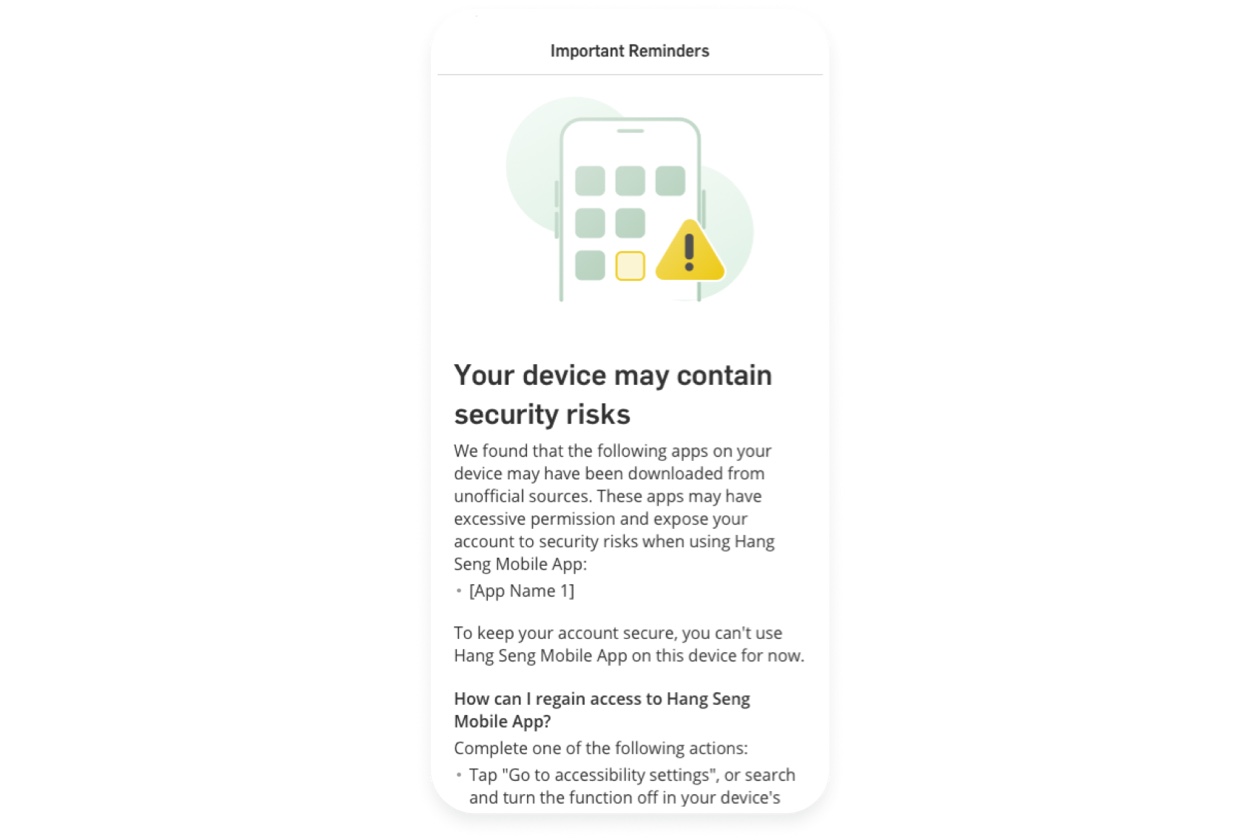
When you open the latest version of our app, we'll check the source and permissions of apps installed on your device. If we detect any suspicious apps, you'll see a screen showing the name of those app before logging on.
If you see the blocked logon screen, you need to complete one of the following actions before you can log onto Hang Seng Mobile App:
No, you don't have to delete or install Hang Seng Mobile App again. To continue using our app, please turn off Accessibility function for apps shown in the blocked logon screen.
Suspicious apps are those downloaded from unofficial sources, which are not verified officially. Excessive permissions refer to apps that request extra accessibly access to sensitive information or device functionalities.
We recommend the following:
If you can't find the mentioned app in the accessibility application list, it is possible that the malware may be disguised as another app. In this case, we recommend turning off the accessibility function for all apps on your device as a precautionary measure. This will help ensure the security of your device while using Hang Seng Mobile banking.
Please consider deleting the identified app or reset your device to factory settings.
Google Play Store, Samsung Galaxy Store, Xiaomi Mi GetApps, Huawei AppGallery, Amazon Appstore, OPPO App Market, VIVO App Store, MeiZu App Store, OnePlus App Gallery, HONOR App Gallery, etc.
Your privacy matters to us. We only use this tool to detect malware activity and security threats. We don't collect additional personal data from your device.
Accessibility settings such as text-to-speech enhances user interface and makes it easier for users with disabilities to use a mobile device. However, fraudsters are using these settings to control devices remotely to steal sensitive information.
Our anti-malware tool flags apps downloaded from sources other than official app stores. Some well-known apps come from non-official sources, so they carry potential security risks.
The impact may vary for each app. You can enable the accessibility settings again after using Hang Seng Mobile App, or consider downloading the app from official app stores.
Devices with debugging options enabled could pose a security risk. To protect your account, we've temporarily suspended your access to Hang Seng Mobile App on the device.
You can restore access by disabling the debugging options. Just go to the settings page on your device, search for "Developer" and it'll take you to the relevant page.
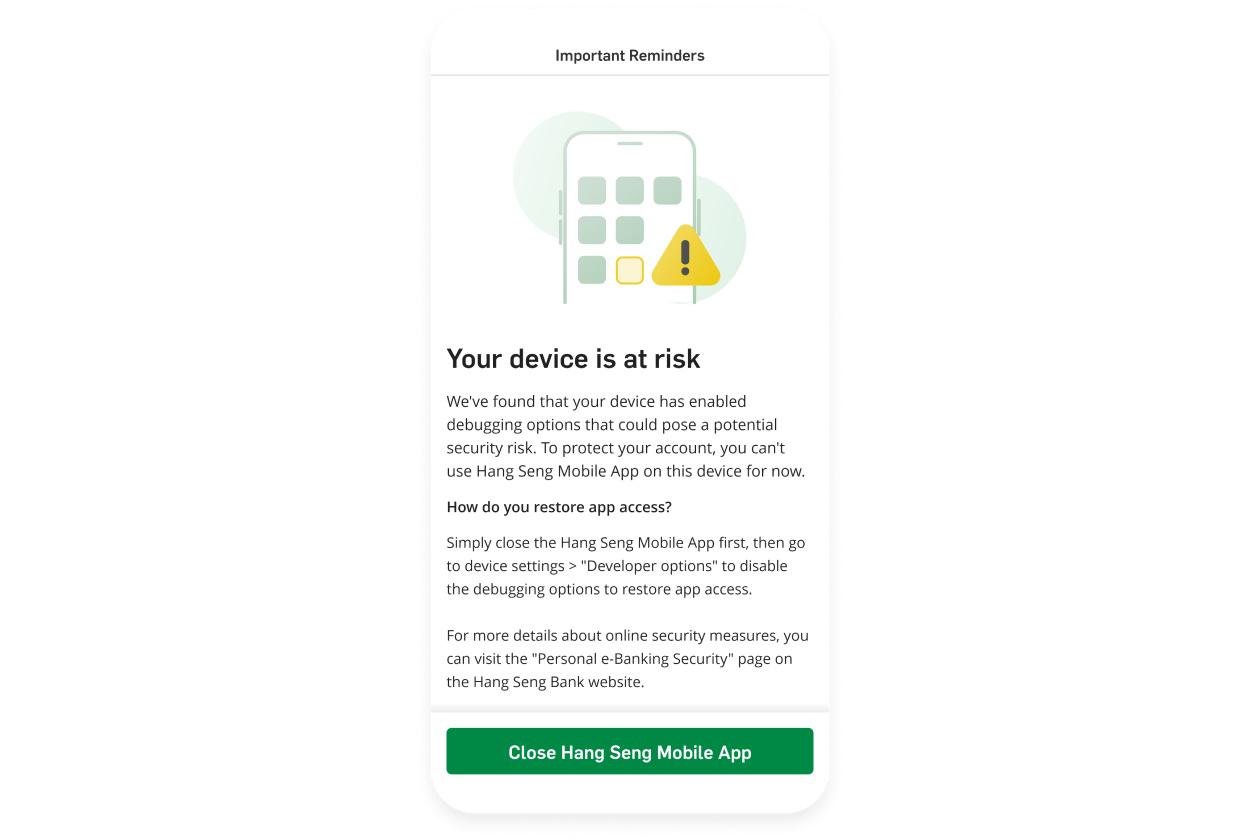
You need to close and reopen the app. If you've already disabled the debugging options, you'll be able to use the app.
Enabling debugging options require granting extensive permissions, which might allow others to access your device without authorisation or modify system settings.
This message appears because we detected that your Hang Seng Mobile App was installed via a third-party app, such as a virtual space or cloning tool, which may pose potential security risks. Therefore, you can't use the Hang Seng Mobile App now to protect your account and personal information.
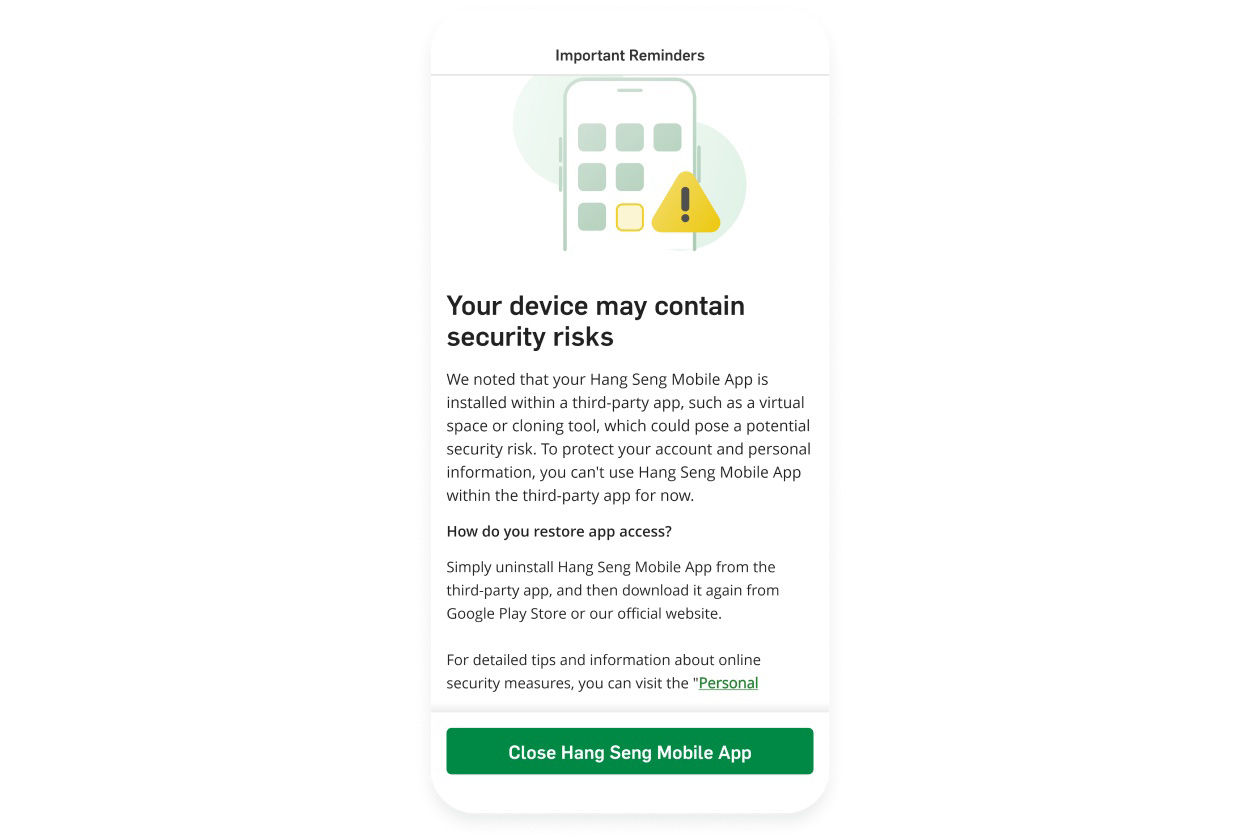
To restore access, please uninstall Hang Seng Mobile App from any third-party applications first. Then, download the latest version of Hang Seng Mobile App directly from the Google Play Store or our official website.
To better protect your account, Hang Seng Mobile App needs to run in a secure environment. Using third-party apps may pose security risks to your account and personal information.
You can keep track of your banking activities such as log-on and transaction via Hang Seng Mobile App by going to "Settings & Security" > "Your Recent Activities".
Records will be kept up to 90 days (max. 3,000 records), helping you to stay updated with your account and prevent unauthorised access.
To better protect your account, we'll record some particular online banking activities for your easy reference. This includes:
Types |
Banking activities |
| Log-on |
|
| Security and app settings |
|
| Change of contact details |
|
| Transfer and Pay |
|
| Transfer limit and payee settings |
|
| Cards settings |
|
We will only keep a record of some particular online banking activities, and credit card transactions are not included.
You can go to "Credit Cards" at the bottom menu of Hang Seng Mobile App, and check the relevant records under "Recent transaction(s)"
If you noticed any suspicious banking activities, please contact us via "Settings & Security" > "Report suspicious transactions" to temporarily suspend your Personal e-Banking account.
In some cases, such as account limitations or system upgrades, the instructions that shown as submitted may not be completed. You can learn more about the status of the instructions in the following ways:
|
The location is based on the IP address we detected when you logged on. If you're using any VPN services, it may change your IP address, which makes the log-on location shown in the record different from your actual location. Similarly, if you're using a data SIM with roaming enabled, the log-on location may reflect the location of the data SIM, rather than your actual location.
The browser you're using may ride on an open-source technology called Chromium, which is the same technology that powers Google Chrome. In this case, the browser you logged on with will be shown as Chrome.
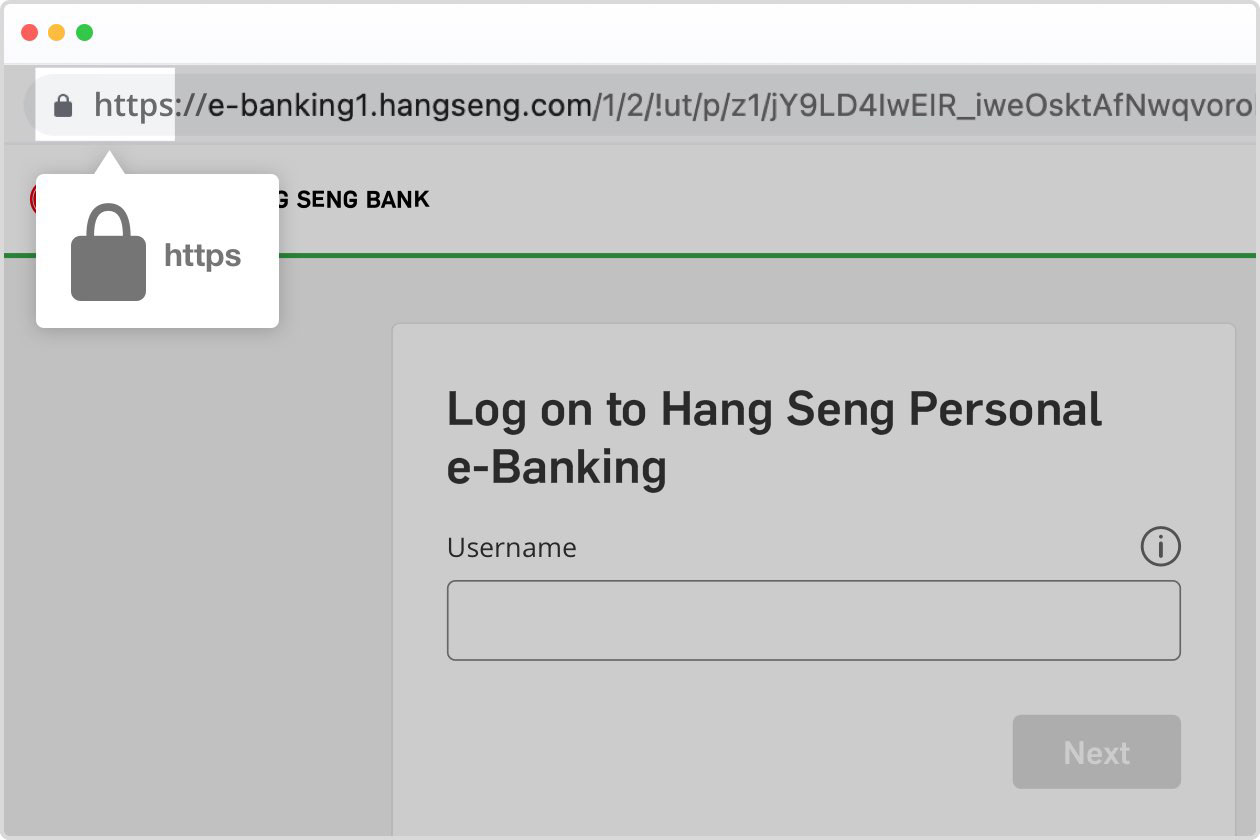
You will notice the bank's URL address begins with “https” when you have established a secure session with Hang Seng Personal e-Banking. Most desktop browsers will display a padlock icon either in the address bar or near the top of the browser to indicate you are accessing genuine Personal e-Banking services.
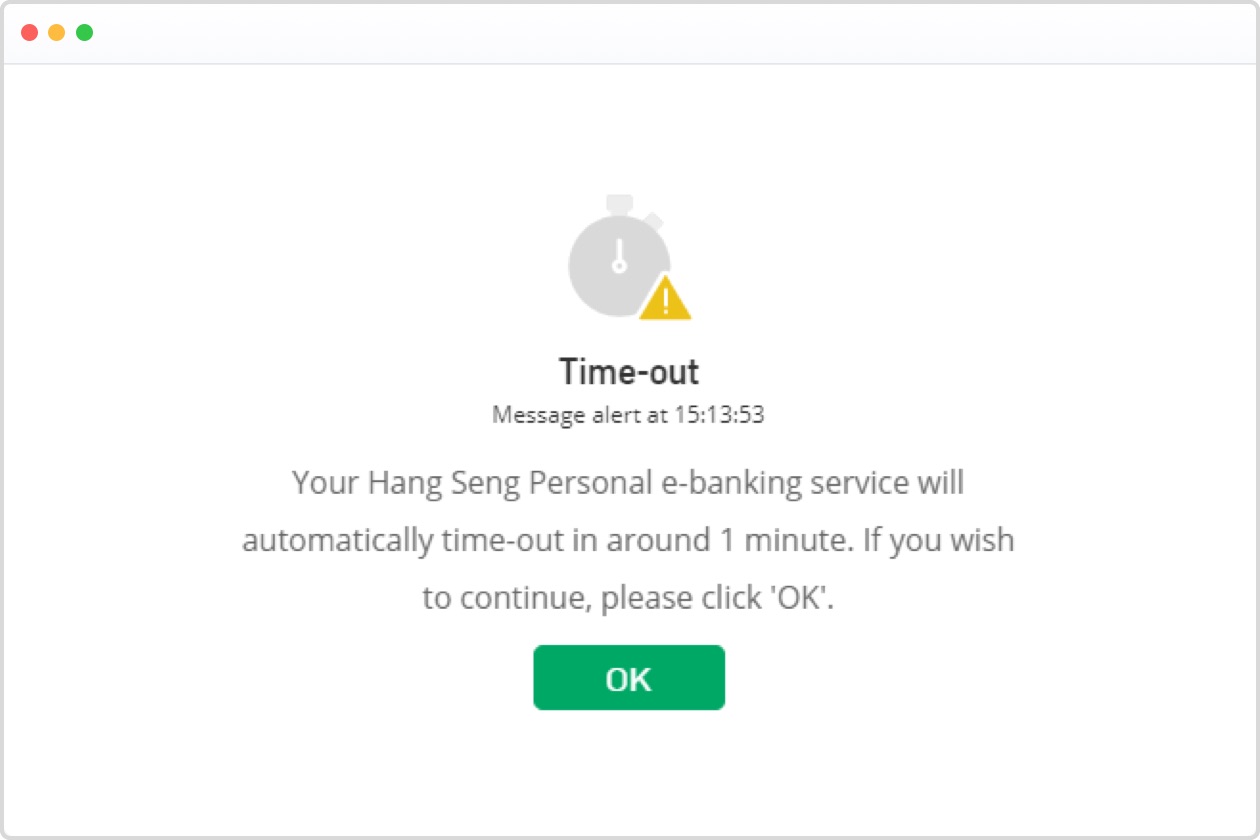
If a session is unattended or inactive for a certain period, it will be terminated automatically to prevent unauthorised access to your bank account.